Step 1. Download the Zip file
Click here to download the ZIP file (34MB).
Your browser will start downloading a file like 115.1-desktop-1.1.9.zip.
When the download finishes you should see it:
In the browser’s download bar, or
In your Downloads folder.
Step 2. Unzip the file (optional)
If a new file hasn’t appeared with the name 115.1 then double-click on the Zip file.
Step 3. Move file to Applications folder
Look for a file called 115.1:
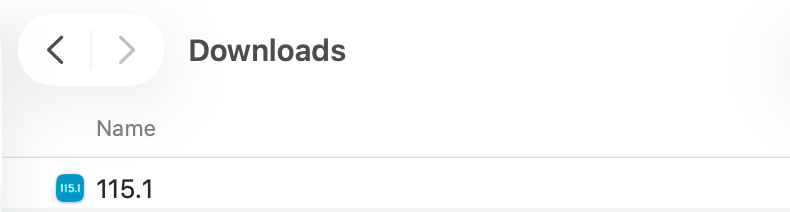
Copy the file and navigate to your Applications folder.
Paste the file into your Applications folder.
Double–click the file.
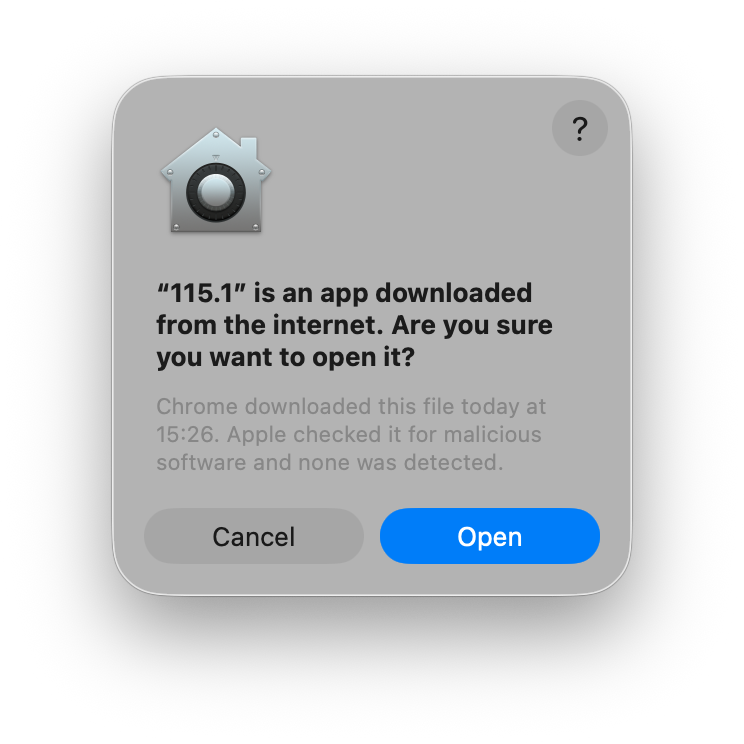
MacOS download message
Depending on the browser you’re using, you might see a MacOS download screen like this:
Click Open.
The 115.1 App will open for you to start using.
Step 4. Open 115.1 later
After installation you can open 115.1 by:
Opening your application tray by pressing the applications button in your keyboard (usually the same as the F4 key) and selecting the 115.1 app, or
Searching for 115.1 in spotlight search, or
Pinning it to your dock for quick access:
Right-click on the 115.1 icon in the dock while the app is open.
Select Options and then Keep in dock.